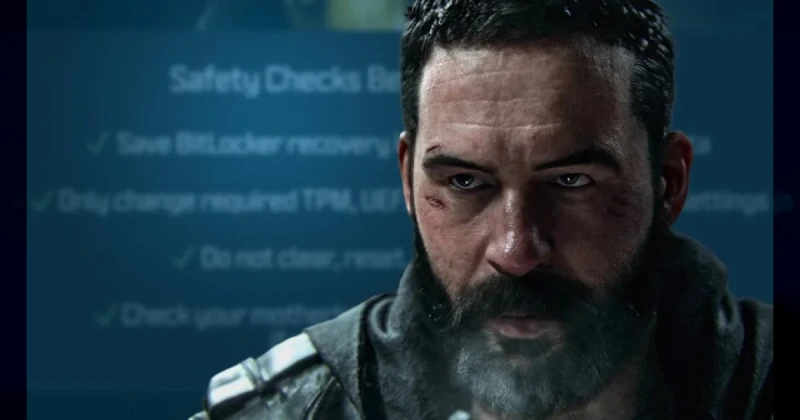
Call of Duty: Modern Warfare 4 Beta PC Security Requirements Explained
Call of Duty: Modern Warfare 4 is approaching its first beta weekend, and Activision’s Ricochet anti-cheat team has published a guide showing PC players how to enable the security features required to play online. In practical terms, the beta expects modern Windows protections such as TPM 2.0 and Secure Boot to be active, because Ricochet uses them to reduce cheating and improve account integrity.
The reason this matters is simple: if your system is missing one of these settings, you may be locked out before the match even starts. For PC players used to a simple launcher click, this extra setup can feel annoying, but it is now part of the reality of competitive online shooters like Call of Duty, Apex Legends, and Valorant.
Modern Warfare 4 is expected to continue the franchise’s signature mix of fast-paced multiplayer, large-scale gunplay, and cinematic presentation. While Activision has not changed the core formula, the anti-cheat layer is becoming a bigger part of the player experience, especially on PC where spoofing, hardware tampering, and kernel-level exploits have historically been harder to police.
How to Enable TPM 2.0 and Secure Boot for the Modern Warfare 4 Beta
If you want to join the Modern Warfare 4 beta on PC, the safest move is to check your BIOS settings before the weekend begins. Many players discover too late that their machine supports the features, but they are simply disabled. The good news is that the process is usually straightforward if your motherboard and Windows installation are already configured correctly.
- Check Windows first. Press Win + R, type tpm.msc, and confirm that TPM is present and active. Then open System Information and look for Secure Boot State: On.
- Enter BIOS/UEFI. Restart your PC and press the motherboard key shown on screen, often Delete, F2, or F10.
- Enable TPM. On Intel systems this may appear as PTT; on AMD boards it is often called fTPM.
- Turn on Secure Boot. This is usually inside the Boot or Security menu. Some systems require you to switch from Legacy/CSM boot to UEFI first.
- Save and restart. After rebooting, re-check Windows to confirm the settings stuck.
It is worth noting that BIOS layouts vary widely between ASUS, MSI, Gigabyte, ASRock, and laptop vendors. If a menu looks different from a guide you found on YouTube, that does not mean your board is incompatible; it often just means the terminology differs. Search for your exact motherboard model if you are unsure.
Common prerequisites before you start
- Windows 10 or Windows 11 installed in UEFI mode
- TPM 2.0 support enabled in firmware
- Secure Boot active
- Administrator access to BIOS/UEFI
- Latest motherboard firmware if your board is older
Why Ricochet Anti-Cheat Uses TPM 2.0, Secure Boot, and PC Integrity Checks
Activision’s Ricochet anti-cheat is designed to make cheating more expensive and harder to hide. TPM 2.0 and Secure Boot do not magically stop every cheat, but they help create a more trustworthy boot chain and make certain types of tampering easier to detect. In a shooter where milliseconds and hit registration already shape the outcome, reducing dishonest advantages is a major priority.
This approach reflects a wider trend in PC gaming. Valorant uses strict system-level safeguards, and competitive titles increasingly ask players to accept more security friction in exchange for cleaner matches. For a blockbuster franchise like Call of Duty, that trade-off is easier to justify than it is for a casual single-player release, because multiplayer fairness directly affects retention and monetization.
There is also a historical context here. Earlier Call of Duty releases often dealt with waves of cheaters that undermined ranked play and made the PC environment feel unstable. By making security requirements explicit before the beta, Activision is trying to reduce support chaos, lower day-one complaints, and establish a stronger baseline for the full launch.
If you are someone who usually skips the PC troubleshooting rabbit hole, this is the kind of weekend prep that pays off. A 10-minute BIOS check now is far better than spending beta night searching for a fix Secure Boot error or trying to reduce stuttering PC while a queue timer ticks down.
Modern Warfare 4 Beta PC Checklist Before the First Weekend Starts
Before you launch the beta, run through a quick checklist so you are not blindsided by a security prompt. Think of it like verifying drivers before enabling a new graphics feature such as NVIDIA shader compilation or a shader stutter fix; preparation saves time later.
- Confirm the game is installed and fully updated in your launcher.
- Verify your Windows account has admin access for BIOS changes.
- Back up important files before changing boot settings.
- Update motherboard firmware only if you know it is needed.
- Check official Activision support notes before the beta opens.
For players on older hardware, this is where the decision gets personal. If your motherboard supports TPM 2.0 and UEFI Secure Boot, you are probably fine. If it does not, you may be blocked from the beta even if the game itself would otherwise run well. That is frustrating, but it is also increasingly common in modern online shooters built around anti-cheat verification.
From a value perspective, this is also one reason buying games and codes from a trusted digital marketplace can be useful: you want instant access once the technical side is sorted. If you plan to pick up Call of Duty content later, TuniGamers is a convenient place to check for digital keys and fast delivery once the beta pressure is gone.
Troubleshooting Modern Warfare 4 Beta Security Errors on PC
Even when the settings are correct, some players will still hit errors the first time they try to enter the beta. Most of those problems come from BIOS mode mismatches, outdated firmware, or Windows not recognizing that the feature is enabled. Below are the issues most likely to appear.
TPM 2.0 is supported but the beta still says it is disabled
This usually means TPM is turned off in firmware or Windows is not reading it correctly. Re-enter BIOS, find PTT or fTPM, enable it, save changes, and then reboot into Windows before launching the game again.
Secure Boot cannot be enabled
Secure Boot often fails to activate if your PC is still using Legacy or CSM boot mode. Switch the system to UEFI, ensure your OS disk is GPT-formatted if needed, and then try enabling Secure Boot again. This is the most common blocker for modern anti-cheat checks.
The game launches, but Ricochet flags a security mismatch
When that happens, the problem may be a stale BIOS profile, old motherboard firmware, or a Windows update that has not fully applied. Reboot after updates, confirm all settings in System Information, and avoid making multiple security changes at once so you can isolate the cause.
My PC is older and I cannot find TPM or Secure Boot options
Some prebuilt systems and older motherboards simply do not expose the required features. In that case, the beta may be inaccessible unless the vendor offers a firmware update. If not, you may need to wait for the full launch or use a newer PC that meets the anti-cheat baseline.
Frequently Asked Questions
Why does Call of Duty: Modern Warfare 4 require TPM 2.0 and Secure Boot on PC?
Activision is using those security layers to help Ricochet anti-cheat verify the integrity of the system before allowing online play. The goal is to make cheating harder and reduce the number of compromised PCs entering multiplayer matches.
How do I check if TPM 2.0 is enabled on my PC?
Press Win + R, type tpm.msc, and look for the TPM status window. If the console says TPM is ready and shows version 2.0, your system should meet that requirement.
How do I turn on Secure Boot for the Modern Warfare 4 beta?
You need to enter BIOS or UEFI, disable Legacy or CSM boot if necessary, switch the system to UEFI mode, and then enable Secure Boot. Save changes, reboot, and confirm the setting in Windows System Information.
Will the Modern Warfare 4 beta run on Windows 10?
Possibly, as long as your installation supports UEFI, TPM 2.0, and Secure Boot. However, you should check the official beta requirements from Activision because anti-cheat rules can be stricter than minimum game specs.
Is it worth fixing these settings just for the beta?
If you plan to play the full game on PC, yes, because the same security requirements are likely to matter beyond the beta. If you only want a quick test and your hardware cannot support them, it may be better to wait for the final release or play on another platform.
Updated 18 Sep 2026
Sources
Related Posts

BlizzCon 2026 Opening Ceremony: Everything Announced and What It Means
BlizzCon 2026 opening ceremony coverage is packed with World of Warcraft, Diablo, and rumored StarCraft news. Here’s everything announced, plus what it means for players.

Halo 2027 Return Revealed: What Fans Need to Know Now
The Halo 2027 return is finally generating real momentum, and fans want answers about the next mainline multiplayer game. Here’s what the announcement means, what remains unconfirmed, and why it matters for Master Chief and Xbox players.

BlizzCon 2026 Opening Ceremony Guide: Biggest Blizzard Announcements
BlizzCon 2026 Opening Ceremony is Blizzard Entertainment’s biggest stage for Diablo, Overwatch, StarCraft, and Warcraft news. Here’s what to expect, why it matters, and how to follow every major announcement.

Diablo 5 in 2029: Everything You Need to Know About Blizzard’s Next Epic
Diablo 5 is officially coming in spring 2029, and Blizzard has also confirmed a Netflix show is in development. Here’s what the announcement means for fans, platforms, and the future of the series.

BlizzCon 2026 Live Blog Guide: Warcraft, Diablo & StarCraft Rumors
BlizzCon 2026 is set to reveal major Warcraft and Diablo news, with StarCraft rumors stealing the spotlight. Here’s the live blog breakdown, what’s confirmed, and what fans should expect.