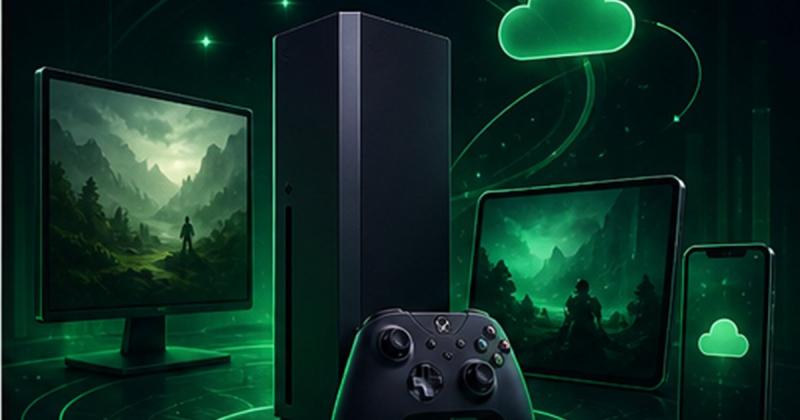
Xbox Play Anywhere applies to participating digital games purchased through the Xbox or Windows Store. With the same Microsoft account, eligible games and progress can follow you between supported devices. Look for the explicit Play Anywhere badge: an Xbox logo, a PC release or an identical game title alone does not establish that entitlement.
Four questions that are often confused
Ask separately: do I own a licence on both devices, can friends on different platforms play together, can I stream the game, and will my saved progress carry over? A positive answer to one does not prove the others. Start from the outcome you want. Someone moving between a home PC and console has a different need from two friends trying to join the same lobby.
Install an eligible Play Anywhere purchase on PC and Xbox
- Check the Xbox Play Anywhere designation on the official listing and purchased edition. Availability on both PC and Xbox alone does not confirm it.
- Verify an eligible digital Xbox or Windows purchase rather than a Steam copy, disc or temporary catalogue entitlement.
- On a compatible Windows PC, open the Xbox app using the owning Microsoft account and find the title in My Library.
- On the console, use the same account and inspect ready-to-install games in My Games and Apps.
- Check edition and system requirements before downloading. If a device says Buy, inspect account and entitlement before ordering again.
- Finish the session and allow save synchronisation before switching devices. Do not choose blindly between conflicting saves.
A useful PC-to-console example
You own a game on PC and want to continue on Xbox. First identify where the PC licence came from. Then check the exact edition’s official listing and the account used for purchase. Do not compare only the cover and price. Write down the activation platform from the order: this is the detail you will need if you ask the seller to explain what your purchase includes.
If the expected game does not appear
- Verify the account in both the store and the gaming app.
- Check whether the offer was a base game, DLC, subscription access or a different edition.
- Compare the order’s platform with the platform you are trying to use.
- Avoid buying again until you understand which entitlement is actually missing.
Be careful when switching devices
Before moving an important play session, let the first device finish its normal save and sync process. If a conflict appears, do not overwrite unfamiliar data just to dismiss the message. Keep an error screenshot with private information hidden and consult the game’s support. A compatibility label is not a promise of a particular frame rate or unlimited simultaneous use.
Four different meanings
A Steam copy of a game also sold on Xbox does not become an Xbox entitlement just because the title participates in Play Anywhere. Check the original storefront and exact terms before expecting a free console download.
For a missing game, retain title, edition, purchase storefront and account identity privately. A masked library screenshot and order reference help distinguish an account issue from delivery of the wrong format.
- Play Anywhere provides access to participating digital versions through the owning account.
- Cross-play concerns playing with people on other platforms.
- Cross-progression concerns saved progress and depends on the game and service.
- Game Pass is a subscription, not a permanent purchase of every catalogue title.
Compare the platform and format of Xbox offers, then use the Game Pass and activation guides for separate subscription questions.
Frequently asked questions
Are all Xbox games Play Anywhere?
No. Check the badge on the exact participating title.
Does a Steam listing prove Play Anywhere ownership?
No. Verify the licence and store involved.
Is cross-play the same as cross-buy?
No. Playing together and owning a licence on multiple platforms are separate features.
Updated 10 Sep 2026
Sources
Related Posts

The Blood of Dawnwalker Armor Proficiency Guide 2026: How to Fix Heavy Armor Penalties
The Blood of Dawnwalker armor proficiency determines when Medium Armor and Heavy Armor stop draining stamina and slowing you down. Here’s how the Swordmastery skill tree works, what to unlock first, and how to avoid costly mistakes.

A game leaves Game Pass: what happens to DLC and saves?
Separate catalogue departure from subscription expiry before deciding what to buy or keep.

Reinstall Windows 11: protect files, activation and BitLocker keys
Prepare recovery without confusing repair, wiping a drive and buying another Windows licence.

Steam Cloud conflicts and Xbox saves: protect your progress
Identify the correct save and verify synchronisation before playing on another device.

Fortnite: identify your Epic account before linking a console
Find the account holding your progress and items before changing a console connection.