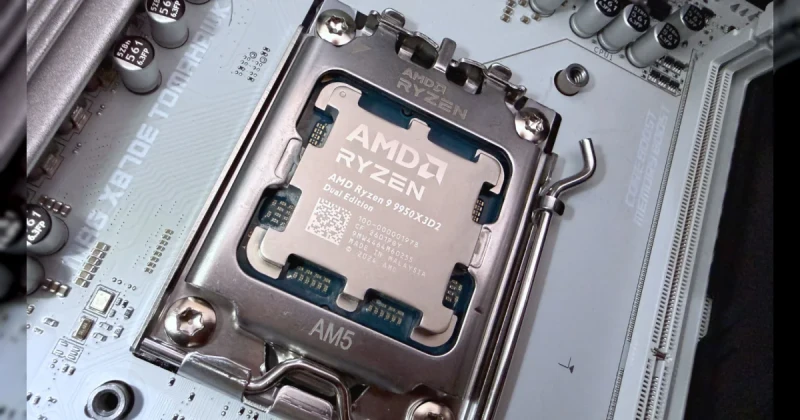
AMD Chipset Driver Install Failure: What It Means for PC Users
When AMD chipset drivers mysteriously fail to install, the problem is usually not your CPU, motherboard, or Windows license—it is the installer itself, often the AMD Install Manager. In practical terms, your system may still boot normally, but you can lose chipset-level optimizations, power-plan behavior, USB stability, and smoother communication between Windows and the motherboard firmware.
AMD chipset driver install failure is a Windows-side installation problem where AMD’s automatic installer does not complete properly, leaving chipset components outdated or partially applied. The fix is usually to bypass the broken installer and perform a manual AMD chipset driver update using the correct package from AMD or your motherboard vendor, then confirm the install through Device Manager and Apps & features.
This matters more than many gamers realize. Chipset drivers are not just background maintenance; they help Ryzen platforms handle scheduling, PCIe behavior, USB controllers, and power management. If you game on titles like Cyberpunk 2077, Baldur’s Gate 3, or Counter-Strike 2, a clean chipset install can reduce random hiccups, improve wake-from-sleep behavior, and make your PC feel less “off” under load.
How to Manually Update AMD Chipset Drivers on Windows 11 and Windows 10
If the AMD installer refuses to cooperate, the best fix is a direct manual install. This is the same general approach enthusiasts use when troubleshooting a stubborn driver installation failed message, except here you are targeting the motherboard chipset package instead of a GPU or peripheral driver.
- Identify your platform: Confirm your CPU and socket, such as Ryzen 5000 on AM4 or Ryzen 7000/9000 on AM5. If you are unsure, open Task Manager > Performance or use msinfo32 to verify your processor and motherboard model.
- Download the correct chipset package: Get the latest AMD chipset drivers from AMD’s official support page or your motherboard manufacturer’s support page. If the AMD package fails, the board vendor package may still install correctly because it can include board-specific INF support.
- Run the installer once: Right-click the setup file and choose Run as administrator. If the Install Manager fails again, do not keep retrying endlessly—move to manual extraction and installation.
- Extract the files: Many AMD packages unpack to a folder on your system before launching the installer. Check locations such as C:\AMD or the temporary download directory. Keep the extracted files available in case you need to install components individually.
- Install from Device Manager if needed: Open Device Manager, find items such as PCI Express Root Complex, SMBus, GPIO, or AMD PSP entries, then use Update driver > Browse my computer for drivers and point Windows to the extracted chipset folder.
- Restart your PC: A reboot is essential. Chipset updates often finish applying only after Windows reloads the new power and bus configuration.
That process covers the core fix AMD chipset drivers not installing workflow. If you are on a laptop or a prebuilt system, the OEM package may be safer than the generic AMD package because it can preserve custom power tuning and sleep-state behavior.
Why AMD Install Manager Breaks and What to Check First
The AMD Install Manager is supposed to simplify chipset updates, but in some Windows builds it can be derailed by security software, stale temporary files, permissions issues, or a damaged previous installation. In other words, the installer may be fine on one machine and completely unreliable on another, especially if the system has had several driver revisions layered over time.
Before you assume the chipset package itself is corrupt, check a few common causes. These steps also help if you are searching for a manual AMD chipset driver update or a broader reduce stuttering PC fix and want to eliminate driver conflicts first.
- Temporarily disable third-party antivirus during install, then re-enable it afterward.
- Delete old AMD installer remnants from temporary folders and the C:\AMD directory if present.
- Use a local administrator account, not a restricted user profile.
- Check Windows Update for pending reboots before trying again.
- Unplug unnecessary USB devices if the install is hanging at device enumeration.
There is also a broader ecosystem lesson here. Unlike GPU drivers, chipset packages affect foundational hardware routing across the platform. On AMD Ryzen systems built around Zen 3, Zen 4, and Zen 5 architectures, a broken chipset update can sometimes feel invisible until you notice slower resume times, inconsistent USB behavior, or odd power management. That is why a clean install matters even when benchmarks look unchanged.
What to Expect After a Successful AMD Chipset Driver Fix
Once the chipset driver is installed correctly, the changes are usually subtle but meaningful. You may not see a huge FPS jump in every game, but you can get better background efficiency, fewer system-level quirks, and more stable behavior during sleep, wake, and heavy multitasking. In gaming terms, that means less distraction and fewer mystery issues that look like game bugs but are actually platform driver problems.
The impact is similar to other under-the-hood optimizations like nvidia shader compilation or a shader stutter fix: the benefit is not always a giant benchmark gain, but smoother real-world behavior. If your rig has been behaving strangely in games like Elden Ring, Helldivers 2, or Starfield, cleaning up chipset drivers is one of the smartest low-risk maintenance steps you can take before reinstalling Windows or replacing hardware.
That said, chipset drivers are not magic. If your problem is caused by overheating, unstable RAM, a bad BIOS setting, or a failing SSD, a driver reinstall will not solve everything. The best expectation is this: chipset drivers should restore correct platform behavior and remove one major source of instability.
Troubleshooting AMD Chipset Driver Installation Problems
The installer opens, then exits without changing anything
This often points to a permissions issue or a broken extraction process. Re-download the package, right-click the installer, and run it as administrator. If it still quits immediately, install from the extracted driver folder manually through Device Manager instead of relying on the launcher.
Windows says the driver is already the newest version
That message can be misleading if the component package did not install correctly. Open Apps & features and check the AMD chipset entries, then compare the installed version with the version on AMD’s support page. If the versions do not match, remove the old package and reinstall cleanly.
My motherboard vendor has a newer driver than AMD
For some systems, the motherboard maker’s package is the better choice because it can include board-specific definitions or power behavior. This is common on premium AM5 boards and prebuilt systems. If you are unsure, use the newest stable package from the motherboard support page first, then compare it with AMD’s release notes.
Should I use a driver updater tool?
For chipset drivers, it is safer to avoid generic driver updater apps. AMD and your motherboard vendor know the exact hardware IDs and supported revisions, while third-party tools can misidentify components. Manual installation is slower, but it is far more reliable for foundational motherboard drivers.
Frequently Asked Questions
Why are AMD chipset drivers failing to install in 2026?
The most common cause is a problem with the AMD Install Manager, not the chipset package itself. Windows permission conflicts, leftover temp files, antivirus interference, or a pending reboot can also block the install. A manual update usually gets around the issue.
How do I manually update AMD chipset drivers?
Download the correct chipset package from AMD or your motherboard manufacturer, run it as administrator, and if the installer fails, extract the files and install the components through Device Manager. Restart your PC after the process finishes so Windows can apply the new platform settings.
Will fixing chipset drivers improve gaming performance?
Usually not in the form of a dramatic FPS boost, but it can improve stability, power management, USB behavior, and resume performance. For gamers, that often translates into fewer random issues and a smoother experience overall, especially on Ryzen systems.
Is it safe to install chipset drivers from my motherboard website?
Yes, and in some cases it is the better option. Motherboard vendors often provide versions tuned for the exact board model, which can help on prebuilt PCs or when AMD’s installer refuses to cooperate. Always match the package to your exact board and operating system.
Should I reinstall Windows if AMD chipset drivers keep failing?
Not right away. In most cases, a manual chipset install, a clean reboot, and removal of conflicting software solve the problem. Reinstall Windows only if you have broader system corruption, repeated failures across multiple drivers, or other major instability.
If you are building a new Ryzen gaming PC or upgrading a prebuilt system, keeping your platform drivers healthy is as important as choosing the right games. And if you need to pick up a new title while you troubleshoot, check TuniGamers for digital game keys with instant delivery. It is also a smart place to grab your next copy of Cyberpunk 2077, Baldur’s Gate 3, or Starfield while your PC gets back in shape.
Updated 10 Aug 2026
Sources
Related Posts

The Blood of Dawnwalker Armor Proficiency Guide 2026: How to Fix Heavy Armor Penalties
The Blood of Dawnwalker armor proficiency determines when Medium Armor and Heavy Armor stop draining stamina and slowing you down. Here’s how the Swordmastery skill tree works, what to unlock first, and how to avoid costly mistakes.

A game leaves Game Pass: what happens to DLC and saves?
Separate catalogue departure from subscription expiry before deciding what to buy or keep.

Reinstall Windows 11: protect files, activation and BitLocker keys
Prepare recovery without confusing repair, wiping a drive and buying another Windows licence.

Steam Cloud conflicts and Xbox saves: protect your progress
Identify the correct save and verify synchronisation before playing on another device.

Fortnite: identify your Epic account before linking a console
Find the account holding your progress and items before changing a console connection.